4 Git basics: a review
Learning Objectives
- Explain why and how data analysis projects benefit from both local and remote version control
- Use Git’s basic functions at the command line to save changes to local and remote version control
4.1 Version control - a review
Version control is the process of keeping a record of changes to documents, including when the changes were made and who made them, throughout the history of their development. It also provides the means both to view earlier versions of the project and to revert changes.
In this course we will learn to use the most popular version control software tools, Git and GitHub. A schematic of local and remote version control repositories using these tools is shown below:
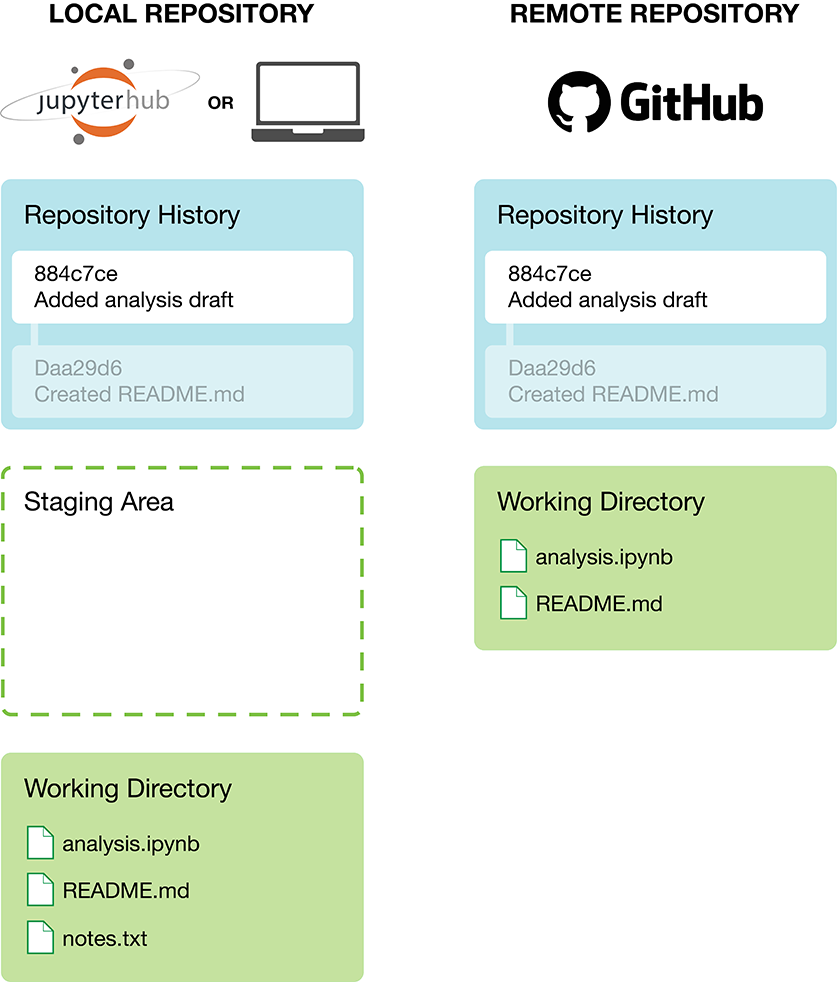
Source: Data Science: A First Introduction
A poll!
We expect some introductory version control knowledge before the contents of this chapter. Essentially, what is covered in Chapter 12: Collaboration with version control from Data Science: A First Introduction. Here’s a poll to check you have the prerequisite knowledge for this chapter. If you cannot easily answer these questions we recommend you go back to Chapter 12: Collaboration with version control from Data Science: A First Introduction and read (or re-read) it.
Which of these is untrue about the Git and GitHub version control software?
a. Allows you to view and/or retrieve older snapshots of the files and directories in a project.
b. Automatically snapshots your work every 2 minutes.
c. Provides transparency on who made what changes to files and directories in a document.
d. Can act as a way to back-up your work.
GitHub is the software you use locally on your computer (i.e., your laptop) to commit changes to the version control history. True or False?
a. True
b. False
c. Neither true or false.
You changed two files (notes.txt and eda.ipynb) but you only want to commit changes to one of them (eda.ipynb) to the version control history. Which Git command allows you to specify this?
a. Add
b. Commit
c. Push
d. Push
At a minimum, how often should you push your work to GitHub?
a. Every 5 min.
b. Every 30 min.
c. At the end of every work session.
d. Once a week.
You try to push your most recent commit from your locale version control repository to your remote repository on GitHub and it fails because Git says the remote contains work that you do not have locally. What do should you do next?
a. Commit the changes you made recently in your working directory.
b. Force push your changes.
c. Pull the changes from the remote repository that you do not have locally.
You pull changes that exist in your remote version control repository on GitHub that you do not have in your local version control repository, and you get the message
Auto-merging in <FILENAME> CONFLICT (content):
Merge conflict in <FILENAME> Automatic merge failed

fix conflicts and then commit the result.
What do you need to do?
a. Push the changes from the local repository that you do not have remotely.
b. Force pull the changes.
c. Manually open the file with the conflict and edit it to have the desired version of the changes, as well as remove the special Git syntax used to identify the merge conflict.
4.2 Common Git commands at the command line
In the assigned textbook reading we use the JupyterLab Git extension tool to run Git version control commands (adding to the staging area, committing, pushing, pulling). However, here we will start using Git commands at the command line (i.e., Bash shell/terminal) because these commands are more stable than most Git graphical user interfaces (such as the JupyterLab Git extension tool). Additionally, the Git command line tool provides access to all Git features, some of which are missing in several Git graphical user interfaces Thus, below we list the most common Git commands that you would need at the command line:
| Description | Command |
|---|---|
| Clone a remote version control repository from GitHub.com to your local computer | git clone |
| Checking the status of the local version control repository | git status |
| Adding a file to the staging area | git add <FILENAME> |
| Committing staged file to the version control history | git commit -m "Some relevant message about the changes" |
| Push changes to the local version control repository to the remote repository on GitHub.com | git push |
| Pull changes from the remote version control repository on GitHub.com to the local repository | git pull |
| Viewing the version control history | git log |