7 Going back in time with Git
Learning Objectives
- View older versions of a project’s files, on GitHub and with the Git command line
- Restore a whole project, or a single file, to an earlier version
Now let’s see how we can use the commits we’ve made to look at files in the past or reverting a file to a version from the past.
7.1 Just going for a look:
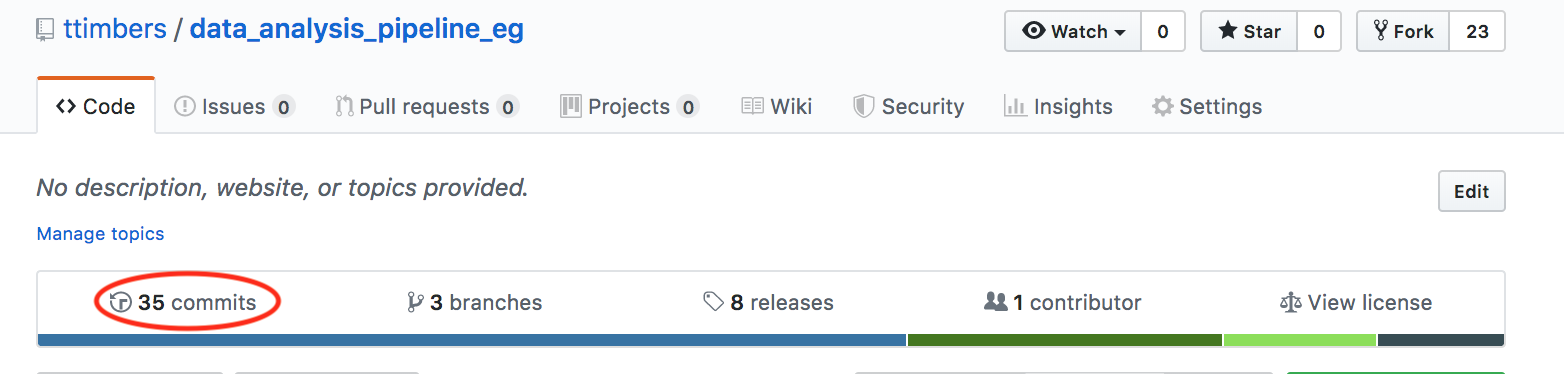
The easiest way to go back in time in your version control repository is to use the GitHub.com website. To do this, we click the commits link:
Then we can view the history, along with the commit messages. To view the state of a repository at that time, we click on the “<>” button:
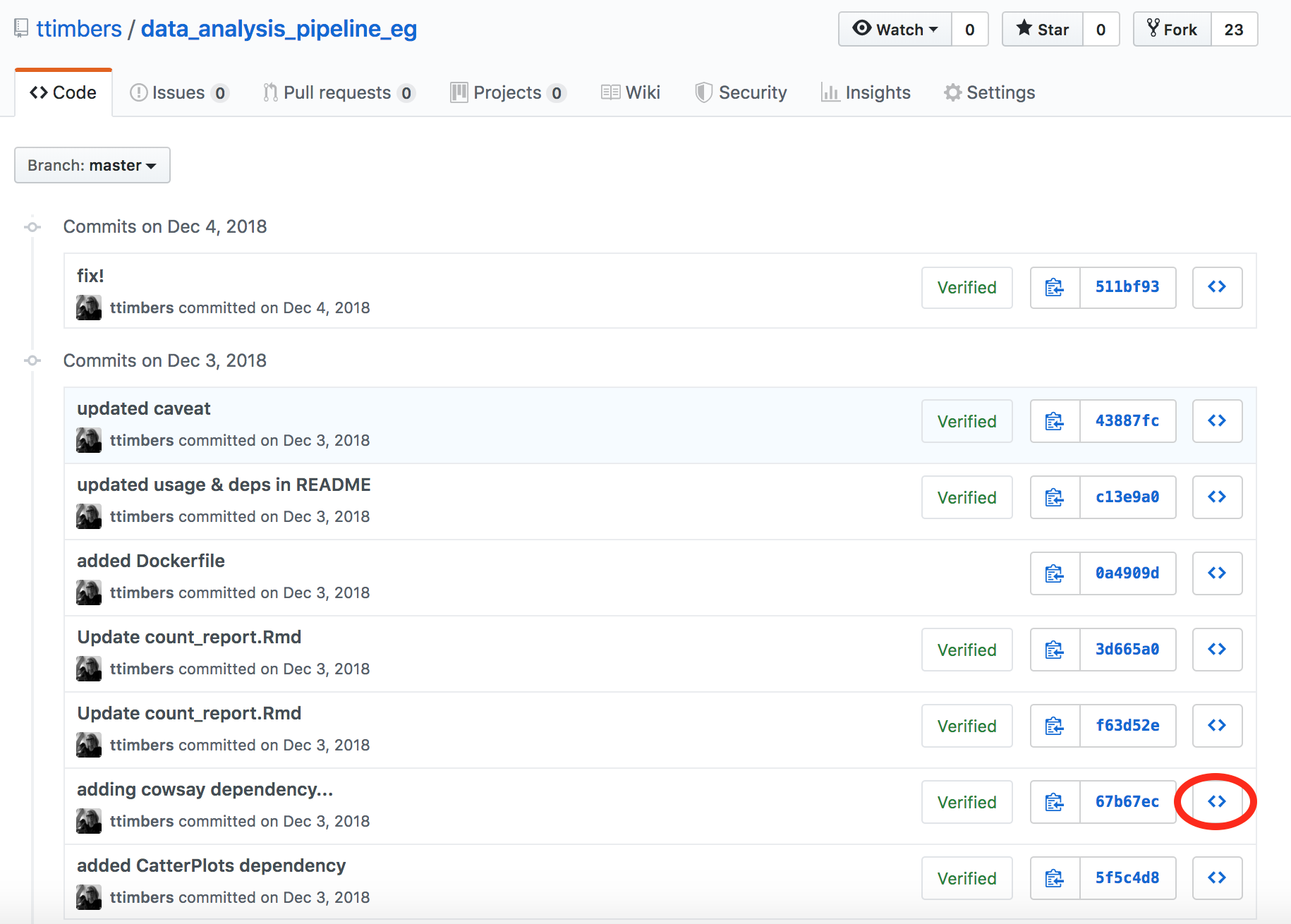
7.2 Travelling in time or bringing something something from the back from the past:
Sometimes you want to be able to explore and run the files from the past, or bring a past version of a file to the future. When we need to do either of those things, we should be working with Git in our local repository.
Here’s the same history as viewed above, but using the Git command line:
git logcommit cab2e6a93f113602974390f64e88dad0a5d6eae3 (HEAD -> master, origin/master, origin/HEAD)
Author: Tiffany Timbers <tiffany.timbers@gmail.com>
Date: Thu Dec 9 10:33:39 2021 -0800
added example using docker-compose.yml
commit b9c1bdcdc0cf8f7bce3fd3874cce0e76b6c474e3 (tag: v4.0)
Merge: 238dbcb 9b4af1d
Author: Tiffany A. Timbers <tiffany.timbers@gmail.com>
Date: Tue Feb 4 10:49:23 2020 -0800
Merge pull request #1 from kguidonimartins/master
Update README.md
commit 238dbcb02a77acb21b251aff7ff954f8c22a91bc
Author: ttimbers <tiffany.timbers@stat.ubc.ca>
Date: Tue Feb 4 10:47:03 2020 -0800
added conda to path of Dockerfile
commit 9b4af1d03c282a2d747d642a0c8847fd53b4f1d7
:The : at the end tells us there are more commits than shown. You can navigate this log by scrolling with the mouse, arrow keys, b key, or by pressing space.
This log is also searchable. Press / + search term + return to search for a word. n/N goes to next/previous match for the search term.
To exit from the Git history log, we press the q (short for “quit”) character.
To see what was changed at a given point in history, we can use the git show command. For example we can view what was changed in the commit with the message “added conda to path of Dockerfile” which has the long SHA 238dbcb02a77acb21b251aff7ff954f8c22a91bc we would type:
git show 238dbcbWe only used the first 7 digits of the long SHA (we call this the short SHA). This is usually unique enough for Git to autofill in the rest for us.
commit 238dbcb02a77acb21b251aff7ff954f8c22a91bc
Author: ttimbers <tiffany.timbers@stat.ubc.ca>
Date:   Tue Feb 4 10:47:03 2020 -0800

    added conda to path of Dockerfile

diff --git a/Dockerfile b/Dockerfile
index 05ad853..faf3918 100644
--- a/Dockerfile
+++ b/Dockerfile
@@ -20,7 +20,11 @@ RUN wget --quiet https://repo.anaconda.com/archive/Anaconda3-2019.10-Linux-x86_6
     echo "conda activate base" >> ~/.bashrc && \
     find /opt/conda/ -follow -type f -name '*.a' -delete && \
     find /opt/conda/ -follow -type f -name '*.js.map' -delete && \
-    /opt/conda/bin/conda clean -afy
+    /opt/conda/bin/conda clean -afy && \
+    /opt/conda/bin/conda update -n base -c defaults conda

 # install docopt python package
 RUN /opt/conda/bin/conda install -y -c anaconda docopt
+
+# put anaconda python in path
+ENV PATH="/opt/conda/bin:${PATH}"
7.3 Travelling in time to the past
Here’s the website view of the same commit:
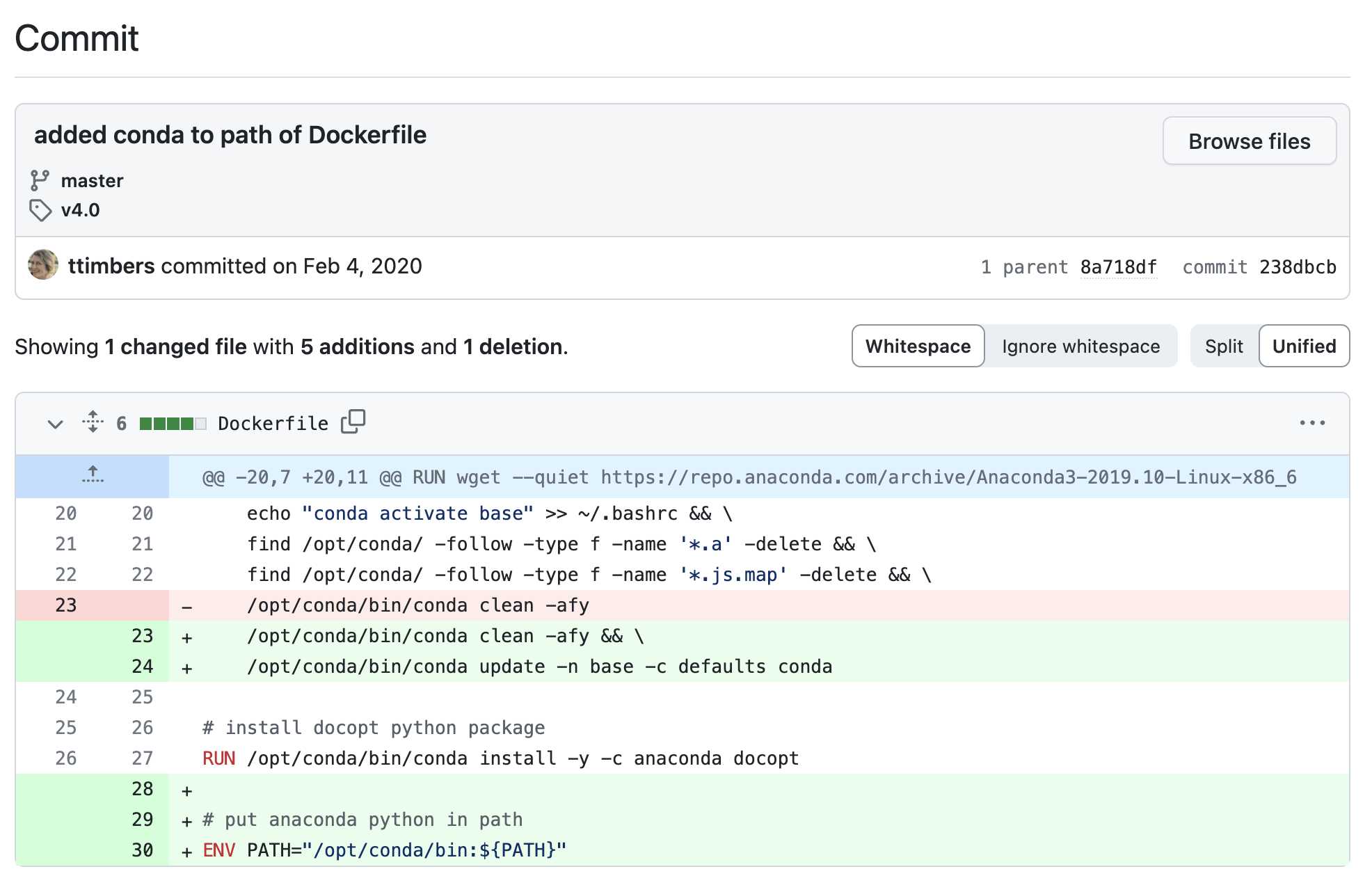
How similar are the local and webpage log views? Do you get the same information from both? Which seems easier to read/navigate? Which would be more useful for testing out your code?
If you wanted to move your project’s file and directories (so entire state) back to this point in time you can do that by running git checkout <commit-id> .. The last . is really important, so don’t forget it!
Let’s do this now to go back to the point just before the changes we explored above:
git checkout 9b4af1d .When we look at the Dockerfile (the file that was changed in the commit after this) we see it does not have the changes we viewed in the 238dbcb! Also, if you run git log you will see the more recent commits in your history are GONE!
Don’t panic! We can go back to the future! To get there (where we were before we started time travelling, we can use git checkout the HEAD commit nickname:
git checkout HEAD .Note:
HEADis the nickname for the most recent commit in a GitHub repository.
Now, let’s check our git log to make sure we returned safely!
git logcommit cab2e6a93f113602974390f64e88dad0a5d6eae3 (HEAD -> master, origin/master, origin/HEAD)
Author: Tiffany Timbers <tiffany.timbers@gmail.com>
Date: Thu Dec 9 10:33:39 2021 -0800
added example using docker-compose.yml
commit b9c1bdcdc0cf8f7bce3fd3874cce0e76b6c474e3 (tag: v4.0)
Merge: 238dbcb 9b4af1d
Author: Tiffany A. Timbers <tiffany.timbers@gmail.com>
Date: Tue Feb 4 10:49:23 2020 -0800
Merge pull request #1 from kguidonimartins/master
Update README.md
commit 238dbcb02a77acb21b251aff7ff954f8c22a91bc
Author: ttimbers <tiffany.timbers@stat.ubc.ca>
Date: Tue Feb 4 10:47:03 2020 -0800
added conda to path of Dockerfile
commit 9b4af1d03c282a2d747d642a0c8847fd53b4f1d7
Author: Karlo Guidoni Martins <kguidonimartins@gmail.com>
Date: Tue Feb 4 13:04:39 2020 -0300
Update README.md
Remove the duplicate `### Usage:` header.
:Clone this GitHub repository to your computer.
View the names of the files that were changed in commit
44c17be, and the specific changes made to the filedoc/count_report.Rmd.Checkout the
44c17becommit and explore it locally.Then go back to where you started (remember to use the nickname
HEAD).
7.4 Bringing something something from the back from the past
Say we decided to return to a point in the past, and restart our work from there? How would we do that?
There is not a nice and easy way (that I am aware of) of cherry-picking a version of single file from the past using the JupyterLab Git extension. To do this, I resort to the Git command line tool in the terminal. The general command is:
git checkout <HASH> <FILE>For example, to checkout the version of the doc/count_report.Rmd from the commit whose hash starts with 5837143, we would type:
git checkout 5837143 doc/count_report.RmdThat will bring that version of the doc/count_report.Rmd into our working directory. We can view it, run it or use it, et cetera. If we want to keep that version going forward for our project, we would have to then add and commit that version of the file to do so.
7.5 What Git tool to use?
There are many many many different tools for using Git. We have so far discussed two in this class (the JupyterLab Git extension, and the Git command line). Others include GitHub Desktop, GitKraken, Source Tree, RStudio’s Git GUI, and VSCode’s Git GUI. Which one should you use? Anyone that fits you best! I recommend experimenting with a few and then settling in with the one that you find easiest to use. One note is that some commands are limited in some tools (e.g., the example above with the JupyterLab Git extension). If you hit that case in your favorite tool, you can use the Git command line tool to get around it and then go back to primarily using your tool of choice.