12 Project management on GitHub
Learning Objectives
- Use GitHub issues to label and assign tasks
- Create project boards using GitHub and link tasks to issues
- Create GitHub milestones to group related issues
12.1 Project boards
Example of a physical Kanban board:
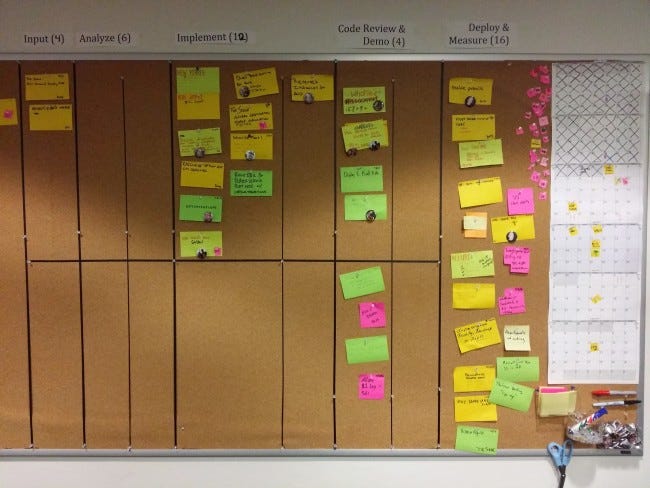
Source: https://medium.com/@mli/lets-get-physical-task-boards-f9d08383e667
Example of a digital project board from GitHub:
Reading: About project boards - GitHub Help
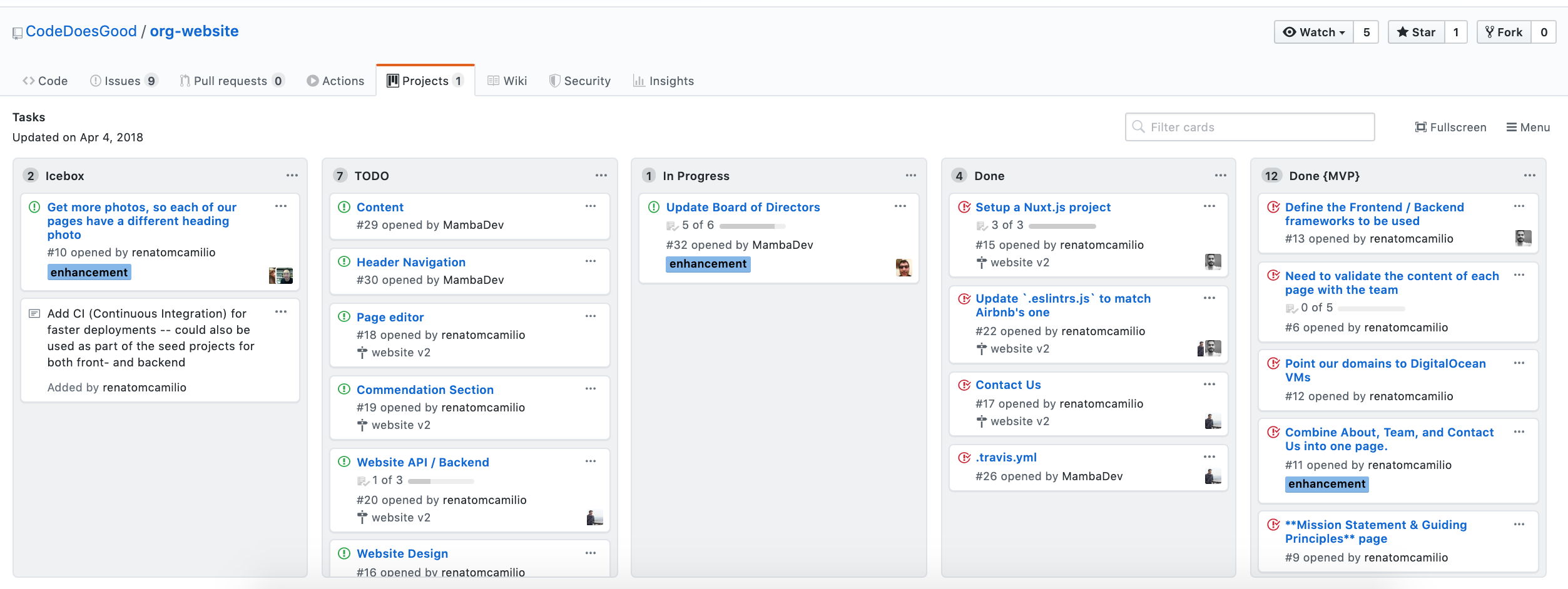
Source: https://github.com/CodeDoesGood/org-website/projects/1
12.1.1 Why use project boards for collaborative software projects?
Transparency: everyone knows what everyone is doing
Motivation: emphasis on task completion
Flexibility: board columns and tasks are customized to each project
Getting to know GitHub project boards
We are going to each create our own project board for our homework. I have set-up a template GitHub repository for you so that you can easily populate it with relevant issues for your assignment. You will use these issues to create your assignment project board.
Steps:
Click the green “Use this template” button from this GitHub repository to obtain a copy of it for yourself (do not fork it). (need help? see: How to import a GitHub repository).
Click on the Actions tab, and then click on the workflow
.github/workflows/create_issues.yml. You then should see a “Run workflow” button with a drop down menu, from that menu select “Run workflow”.Wait patiently while GitHub Actions to create 24 issues for you in your copy of this repository.
Click on the Projects tab, and then click “New project”. Under “Start from scratch” select “Board” as the template option and give the project a name.
Use the Open issues in the repo to set-up a project board for the next two weeks (or more) of your DSCI 310 homework. For each issue you add to the project, assign it to yourself and add a label of “group-work” or “individual-work”.
Additional Resources:
- Assigning issues and pull requests to other GitHub users
- Applying labels to issues and pull requests
- You will be expected to create a project board for each of your groups projects and update it each milestone (at a minimum)
- We expect that each issue should have at least one person assigned to it
12.2 Milestones
Group related issues together that are needed to hit a given target (e.g., new release version of a software package)
Can assign a due date to a milestone
From the milestone page you can see list of statistics that are relevant to each milestone set in that repository
Reading: About milestones - GitHub Help
Example of the readr package milestones:
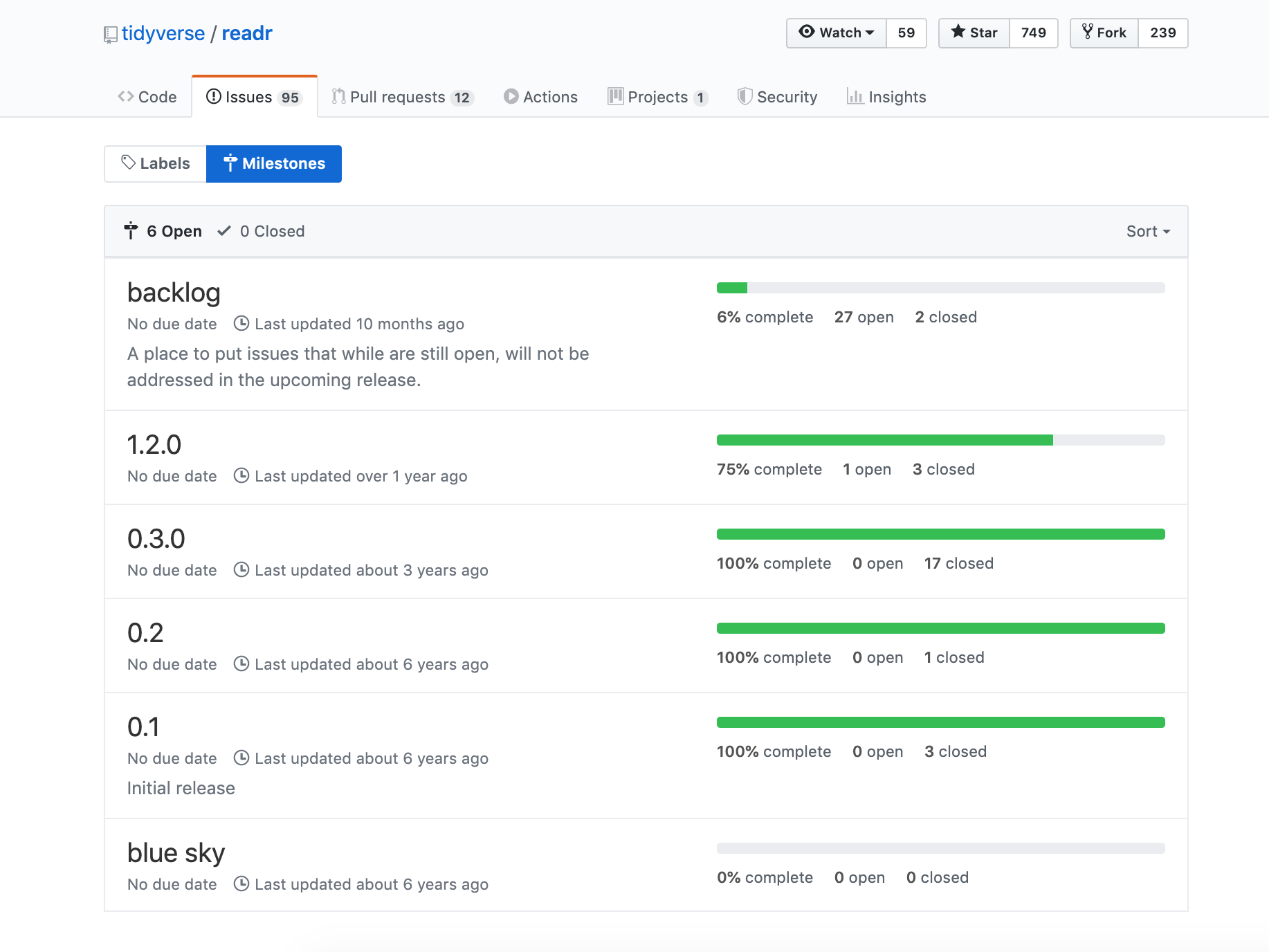
Source: https://github.com/tidyverse/readr/milestones
Getting to know GitHub milestones
We are going to practice creating milestones and associating issues with them. To do this we will continue working with the same repository that you just created a project board for.
Steps:
Click on the Issues tab, and then click on “Milestones”.
Click “New milestone” and name it “month 1” and set the due date to be the end of January. Click “Create milestone”.
Go to the Issues tab, and for each issue that should be associated with the month 1 milestone (i.e., things due before the end of January), click on their checkbox. Then click “Milestone” and select “month 1”
Once you are done, go back to the Milestones page to view what the month 1 milestone looks like.
If you finish early, do this for month 2.
- You will be expected to create a milestone on each of your project repositories for each course assigned milestone. You must link the relevant issues needed to complete that milestone to it on GitHub.